Screenshot tool for Mac
Everything after the screenshot,
handled by ShotPerch
The moment you capture, you're in the editor: annotate, hide personal info, and copy when you're done. Or have captures wait as a thumbnail in the corner, ready to drag into a chat. No more desktop cluttered with screenshots.
- ⌥⇧4Capture Area
- ⌥⇧5Screenshot toolbar
- ⌥⇧2Scrolling capture
- ⌥⇧TCopy on-screen text
- ⌥⇧WCapture Window
- ⌥⇧ZRecall thumbnail
- ⌥⇧HRecent Screenshots
- ⌥⇧PPick a color
Capture fast, edit fast, share fast
From pressing the shortcut to sending it to a colleague, all in one flow.
Capture fast
One easy-to-remember shortcut for areas, windows, and full-length web pages. You can even set the aspect ratio before you capture.
Edit fast
Every capture opens in the editor. Every tool has a single-key shortcut, and you can copy as soon as you're done.
Share fast
Send it via the Share menu, or switch to thumbnails and drag them straight into LINE, Slack, or email. No saving and hunting for files first.
What it looks like
Every image is a real ShotPerch screen. Click one to watch it in action.
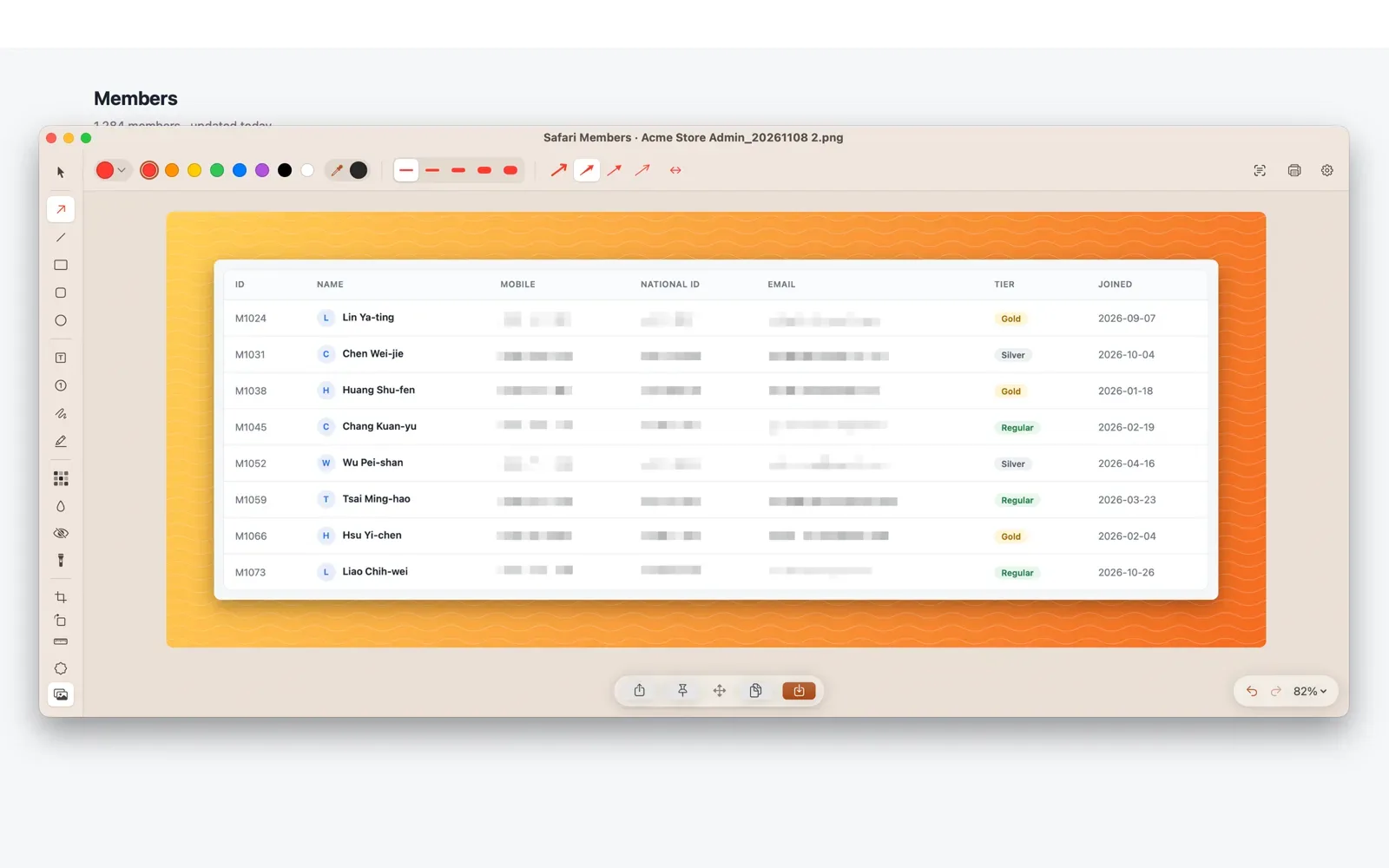
Hide Personal InfoPhone numbers, ID numbers and emails covered in one click
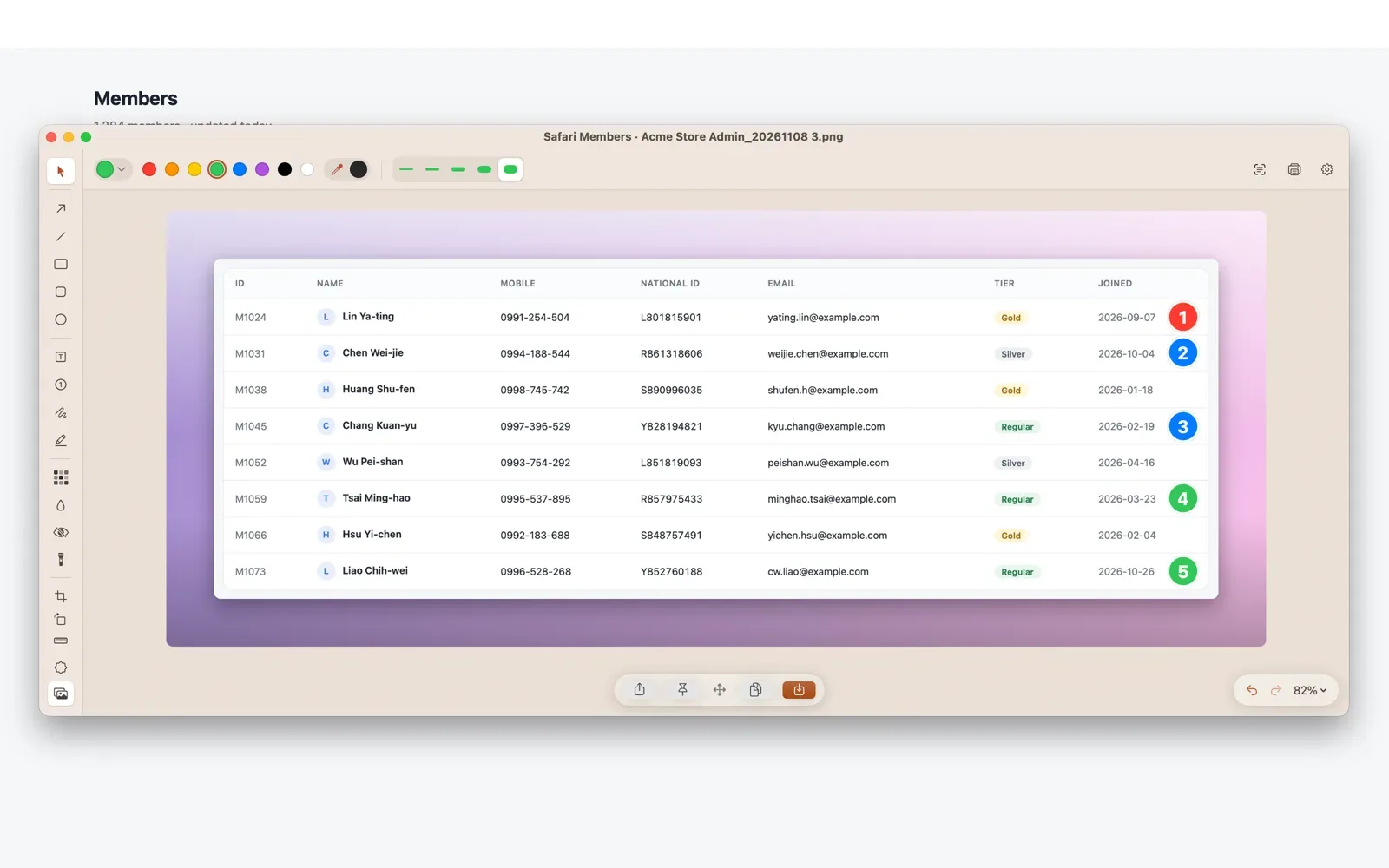
Step NumberNumber the items to handle, in order
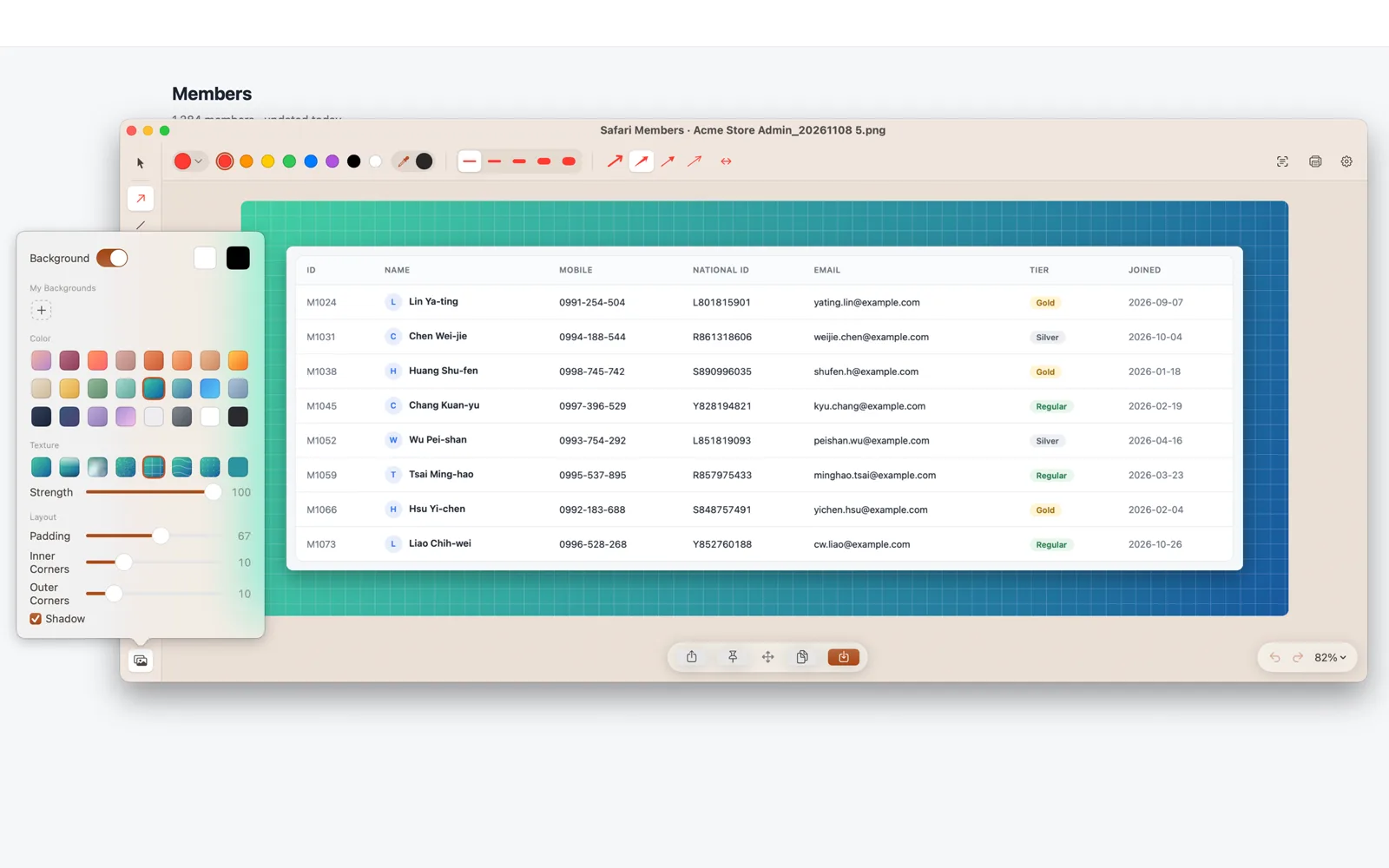
BackgroundPresentation-ready in one click
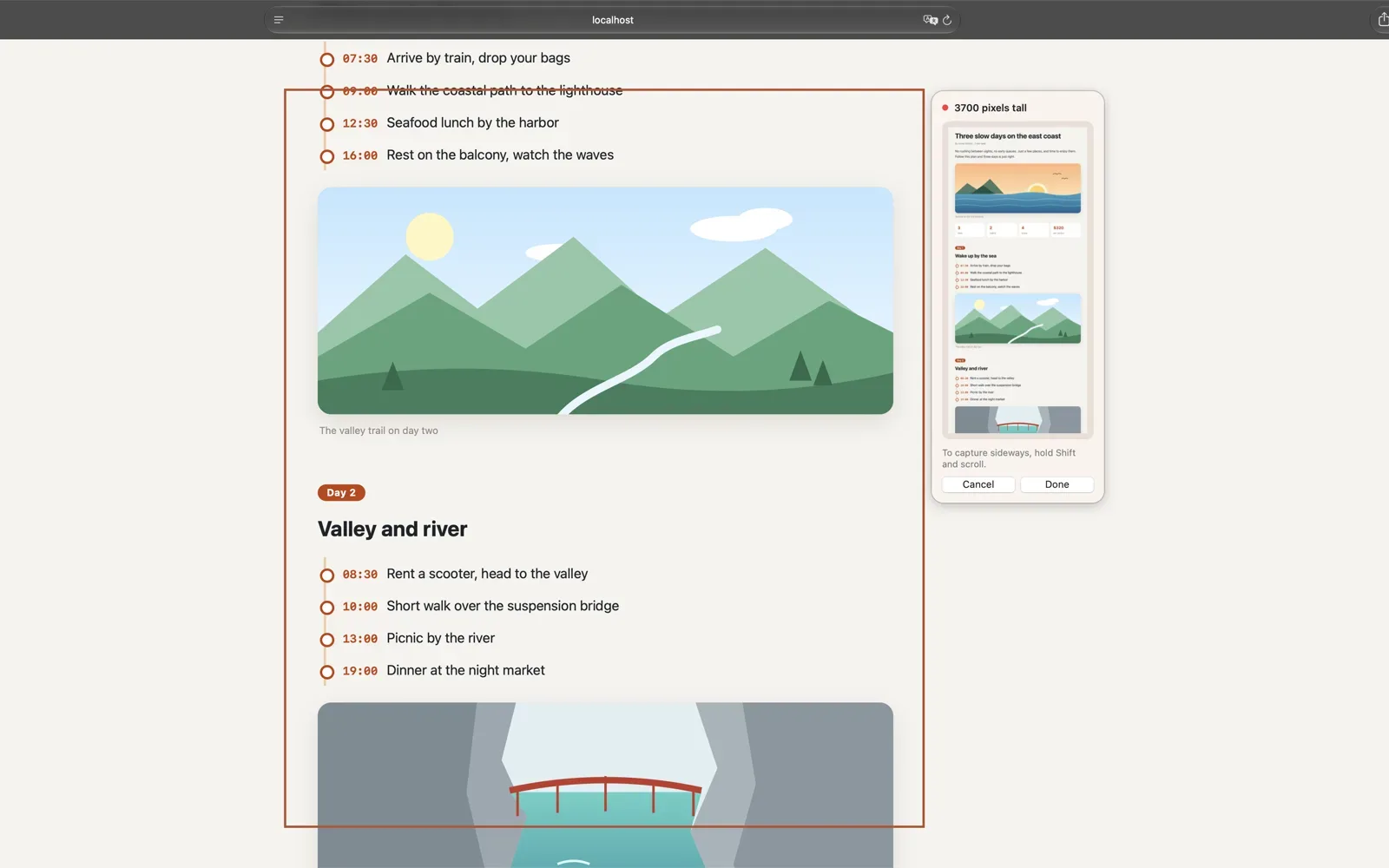
Scrolling captureKeep scrolling and it becomes one long image
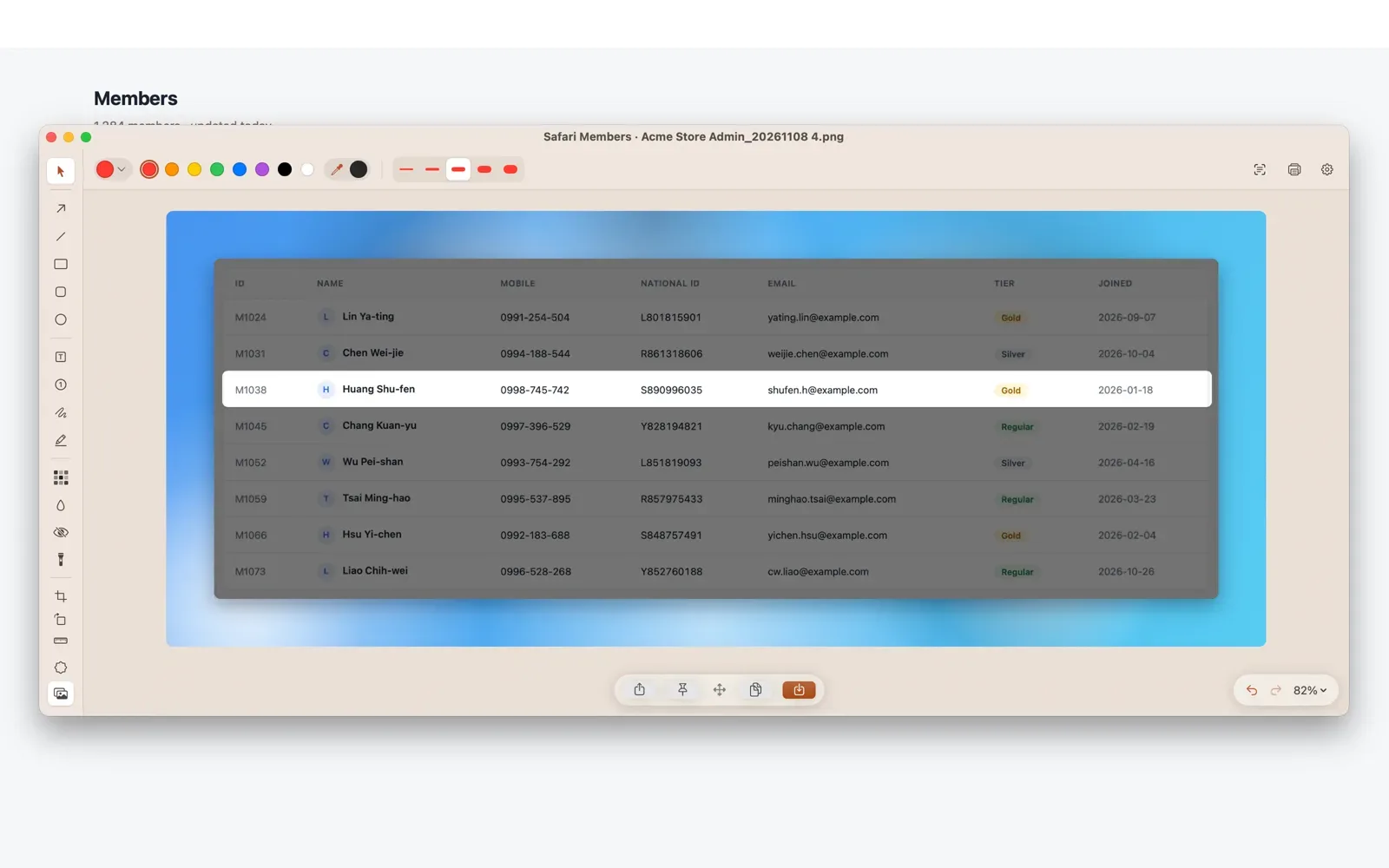
SpotlightDim everything else, keep the point
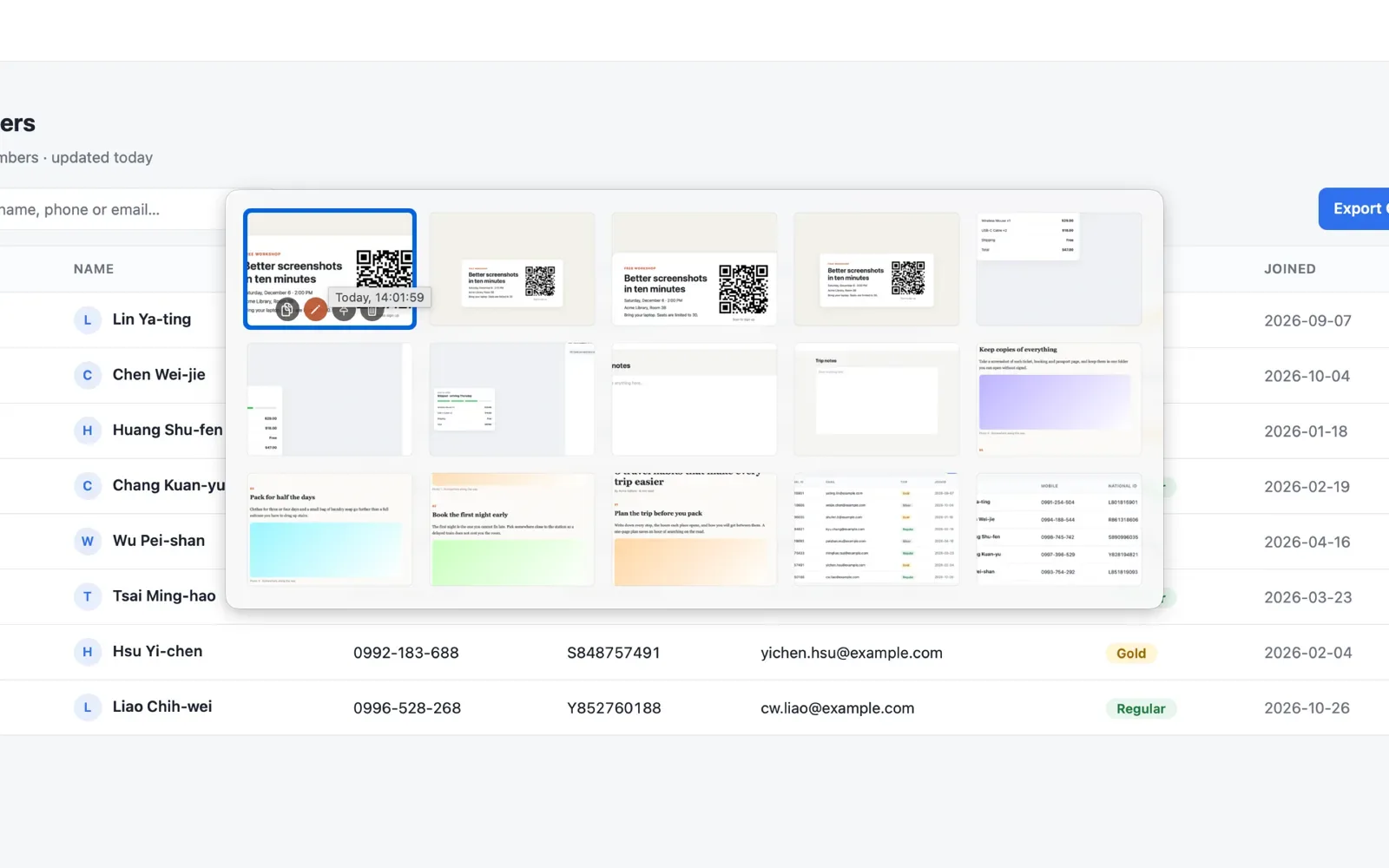
Recent Screenshots⌥⇧H brings them up by the pointer
What’s new
Items marked Pro need Pro; everything else works in the free version.
Pick a color from the screenPro
Press ⌥⇧P and a magnifier follows the pointer, showing the color code as you move. Nudge with the arrow keys, press Tab to switch between HEX, RGB and HSL, and click to copy.
Scrolling capture, now sidewaysPro
Hold Shift and scroll to stitch left and right. Wide tables and timelines in one shot.
Open recognized links in one clickPro
Select a link, or a QR Code that contains one, and the banner gets an “Open” button. Nothing opens until you click it.
Hand-drawn and curly arrows
Pull the shaft into a curve, like circling the point with a pen.
Opacity for filled shapes
Make filled rectangles, rounded rectangles and ellipses semi-transparent to mark an area while the text underneath stays readable.
Measure distance and anglePro
Drag diagonally to see the distance and angle between the ends. Hold Shift to lock to horizontal, vertical or 45°.
Snap pasted images into place
After you paste an image, the view zooms to show everything; drag near an edge or center line and it snaps into alignment.
Dashed and dotted lines
Lines, arrows and outlined shapes can switch to dashed, long-dashed or dotted.
New shapes for step numbers
Pick a rounded square, a map pin or a speech bubble, and write the numbers as ABC or 一二三.
Every feature, recorded for you
Click through to watch short clips of it in action.
Capture modes
Area, window, full screen, and scrolling capture, up and down or sideways. You can even copy text and pick colors right off the screen.
Watch demo →Corner thumbnails
Set “After Capture” to “Show a Thumbnail” and your capture waits in the corner. Drag it into a chat to send.
Watch demo →Annotation tools
Arrows (including hand-drawn and curly), boxes, text, step numbers, and highlighter, with stacking order you can change when they overlap. Mark what matters in seconds.
Watch demo →Polish and emphasis
Add a beautiful background in one click, and use spotlight and blur to make key points pop.
Watch demo →Privacy and recognition
Automatically hide emails, phone numbers and ID numbers. Text and QR code recognition happen entirely on your device.
Watch demo →Personalization
Theme color, toolbar position, logo, file naming, and shortcuts, all tuned to how you work.
Watch demo →Great for free, even better with Pro
Capturing, corner thumbnails, annotation, pixelation, and cropping are all free. When you need more, try the Pro features below free for 14 days.
Your screenshots stay on your Mac
No account required. Text recognition and auto-redaction happen right on your Mac, and your screenshots are never uploaded anywhere. The interface comes in 22 languages and can differ from your system language. Requires macOS 14.4 or later.