Scrolling Screenshots on Mac
Scrolling Screenshots on Mac
Whole web pages and long chats, in one shot
macOS has no built-in scrolling screenshot. With ShotPerch, press ⌥⇧2, select an area, and scroll—it stitches everything into one long image. Web pages, chats, PDFs and spreadsheets all work, and scrolling sideways makes a wide image.
Press ⌥⇧2 and select an area
Drag over what you want to capture, like an article’s text or a chat’s messages. You can also choose “Scrolling” in the ⌥⇧5 toolbar.
Scroll slowly
Scroll down or up—ShotPerch stitches as you go. The panel beside the area shows the current length and a preview of what’s been stitched.
Click “Done”
Or press ⌥⇧2 again. The long image is saved to your screenshot folder like any other screenshot, ready to annotate or hide personal info before you send it. To give up, press Esc or click “Cancel”.
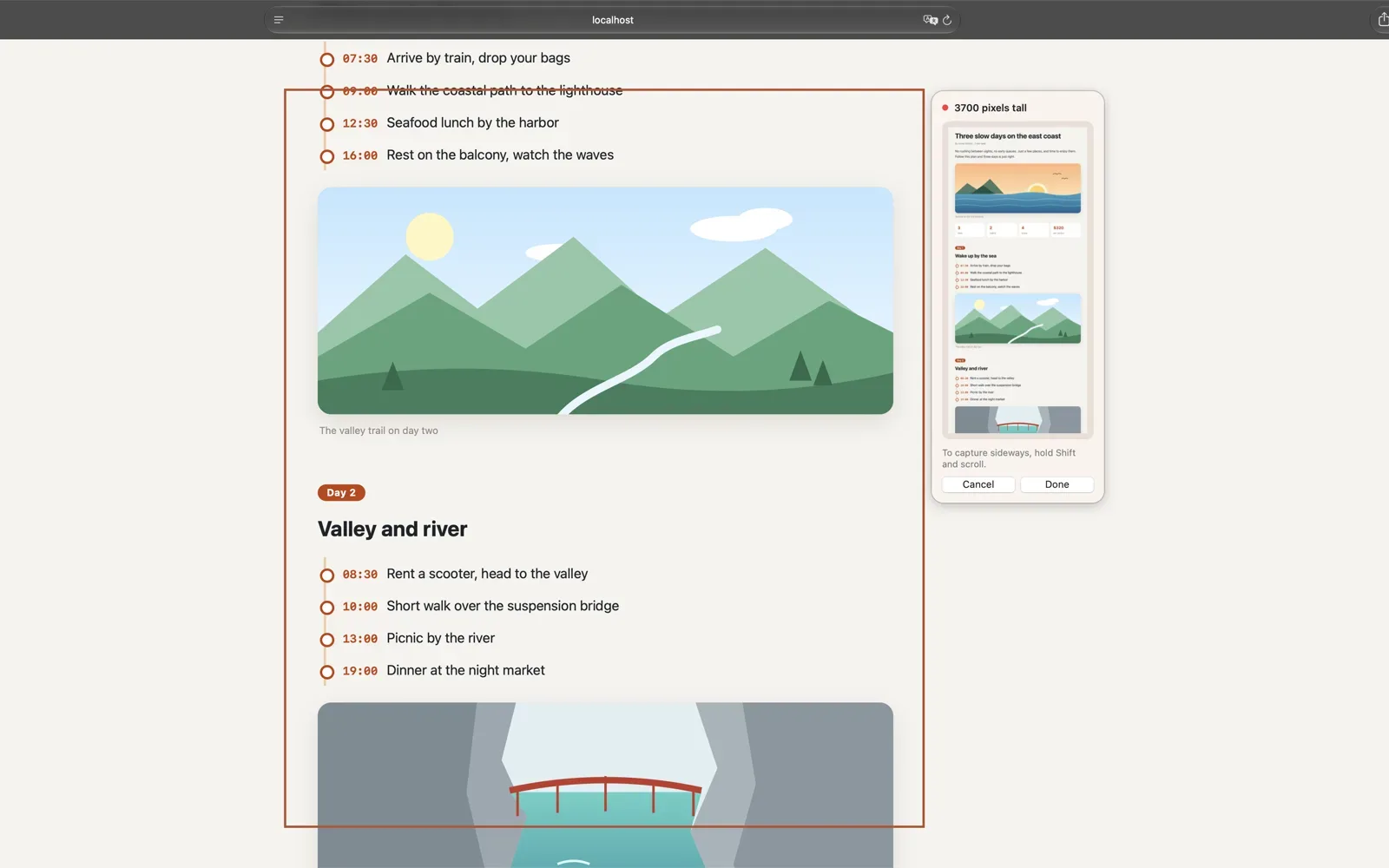
VerticalScroll down and it stitches into one long image
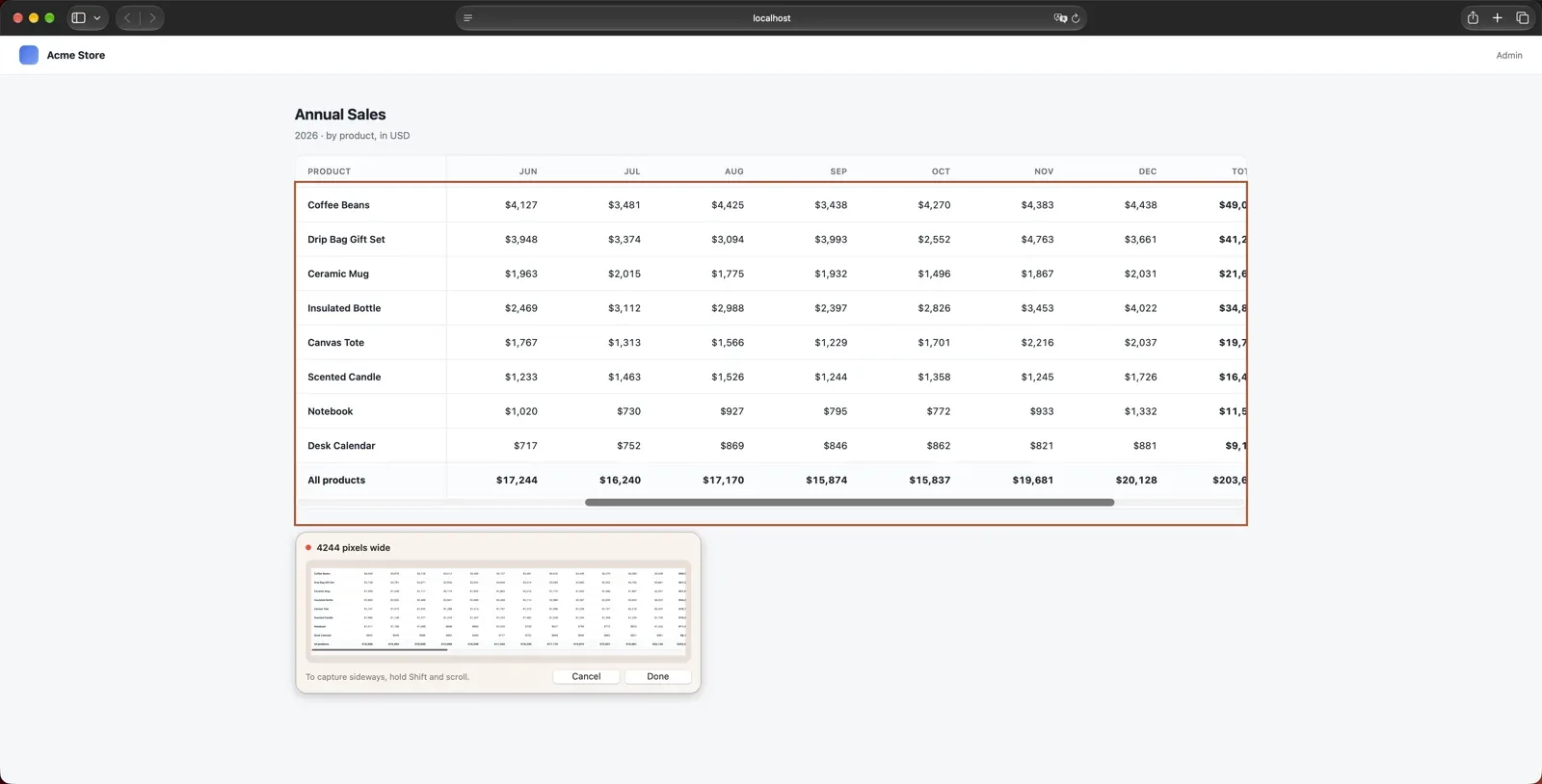
HorizontalHold Shift and scroll to stitch left and right
Vertical: keep scrolling down
Whole articles, product pages, long forms—it captures as far as you scroll. Scrolled too far? Scroll back a little; nothing already stitched is repeated.
Sideways: hold Shift and scroll
Wide tables, Gantt charts and timelines can be stitched left to right too. With a mouse, hold Shift while turning the wheel to scroll sideways.
- Vertical or horizontal is set by your first scroll direction; you can’t switch mid-capture
- When capturing sideways, the panel moves above or below the area so it doesn’t cover what you’re scrolling
Tips for a clean result
Follow these and your long image comes out cleaner.
- Scroll slowly: if you go too fast, pieces can’t be joined, and the panel asks you to slow down or scroll back a little
- Headers and toolbars fixed at the top or bottom appear only once, not in every piece
- Bouncing back at the end of a page is fine—any extra blank space is removed
- Keep things that keep changing, like carousels and videos, out of the area
What can you capture?
If it scrolls, it can almost always become one long image.
- Web pages: whole articles, product pages, search results
- Chats: LINE, Slack and Messenger conversations
- Documents: PDF, Word, Pages
- Spreadsheets: Excel, Numbers, Google Sheets (capture wide ones sideways)
- Notion pages, code and Terminal output
How long can it be?
Up to 30,000 pixels tall, or 30,000 pixels wide when capturing sideways. The total number of pixels is capped, though, so the wider the area (or the taller, when sideways), the shorter it can get. When you hit the limit, you’ll see a notice and what’s captured is saved automatically.
Compared with built-in options
Your Mac has no scrolling screenshot, but browsers can capture a whole web page. If you only need web pages, these may be enough; for chats, PDFs, spreadsheets, or just part of a page, use ShotPerch.
| Method | What it captures | Limits |
|---|---|---|
| macOS screenshots (⇧⌘5) | No scrolling screenshots—only what’s visible on screen | — |
| Safari “File › Export as PDF” | The whole page as one PDF | Safari web pages only; it’s a PDF, not an image, and the layout may differ from what you see |
| Chrome DevTools | The whole page as one PNG | Web pages only. Press ⌥⌘I to open DevTools, then ⇧⌘P and type “Capture full size screenshot”; fixed menus and images that load as you scroll may not come out right |
| ShotPerch ⌥⇧2 | Anything that scrolls, vertical or sideways | Scrolling screenshots are a Pro feature, free to try for 14 days |